Documentation Index
Fetch the complete documentation index at: https://code.claude.com/docs/llms.txt Use this file to discover all available pages before exploring further.
Hooks reference
Reference for Claude Code hook events, configuration schema, JSON input/output formats, exit codes, async hooks, prompt hooks, and MCP tool hooks.
Hooks are user-defined shell commands or LLM prompts that execute automatically at specific points in Claude Code's lifecycle. Use this reference to look up event schemas, configuration options, JSON input/output formats, and advanced features like async hooks and MCP tool hooks. If you're setting up hooks for the first time, start with the guide instead.
Intent model & adapters (little-loops)
This page documents Claude Code's native hook payload format. little-loops layers a host-agnostic intent model on top of it so a single Python handler can serve Claude Code, OpenCode, and any future host that ships an adapter.
- In:
LLHookEvent— the host event normalized to a wire format (host,intent,payload,ts, optionalsession_id/cwd). - Out:
LLHookResult— the response (exit_code,feedback,decision,data,stdout).
The adapter at hooks/adapters/claude-code/<event>.sh converts the Claude-native JSON below into LLHookEvent, pipes it to python -m little_loops.hooks <intent>, and converts the returned LLHookResult back into Claude's exit-code + stderr contract. Authoring a hook against the intent model means you write the handler once and get every host adapter for free.
- Authoring walkthrough: Write a little-loops hook
- Wire-format reference: EVENT-SCHEMA.md — Hook intents
Hook lifecycle
Hooks fire at specific points during a Claude Code session. When an event fires and a matcher matches, Claude Code passes JSON context about the event to your hook handler. For command hooks, this arrives on stdin. Your handler can then inspect the input, take action, and optionally return a decision. Some events fire once per session, while others fire repeatedly inside the agentic loop:

The table below summarizes when each event fires. The Hook events section documents the full input schema and decision control options for each one.
| Event | When it fires |
|---|---|
SessionStart |
When a session begins or resumes |
UserPromptSubmit |
When you submit a prompt, before Claude processes it |
PreToolUse |
Before a tool call executes. Can block it |
PermissionRequest |
When a permission dialog appears |
PostToolUse |
After a tool call succeeds |
PostToolUseFailure |
After a tool call fails |
Notification |
When Claude Code sends a notification |
SubagentStart |
When a subagent is spawned |
SubagentStop |
When a subagent finishes |
Stop |
When Claude finishes responding |
TeammateIdle |
When an agent team teammate is about to go idle |
TaskCompleted |
When a task is being marked as completed |
PreCompact |
Before context compaction |
SessionEnd |
When a session terminates |
How a hook resolves
To see how these pieces fit together, consider this PreToolUse hook that blocks destructive shell commands. The hook runs block-rm.sh before every Bash tool call:
```json theme={null} { "hooks": { "PreToolUse": [ { "matcher": "Bash", "hooks": [ { "type": "command", "command": ".claude/hooks/block-rm.sh" } ] } ] } }
The script reads the JSON input from stdin, extracts the command, and returns a `permissionDecision` of `"deny"` if it contains `rm -rf`:

```bash  theme={null}
#!/bin/bash
# .claude/hooks/block-rm.sh
COMMAND=$(jq -r '.tool_input.command')

if echo "$COMMAND" | grep -q 'rm -rf'; then
  jq -n '{
    hookSpecificOutput: {
      hookEventName: "PreToolUse",
      permissionDecision: "deny",
      permissionDecisionReason: "Destructive command blocked by hook"
    }
  }'
else
  exit 0  # allow the command
fi
Now suppose Claude Code decides to run Bash "rm -rf /tmp/build". Here's what happens:
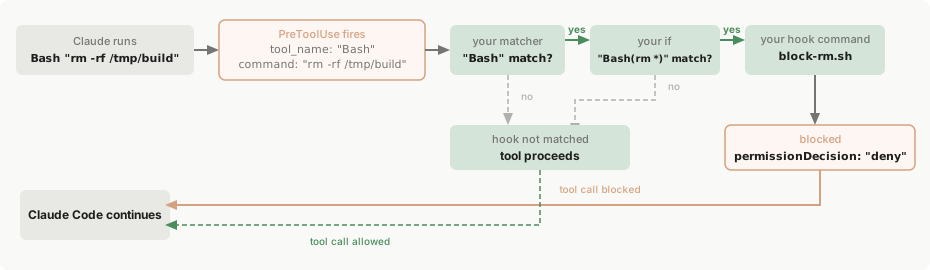
PreToolUse event fires. Claude Code sends the tool input as JSON on stdin to the hook:
```json  theme={null}
{ "tool_name": "Bash", "tool_input": { "command": "rm -rf /tmp/build" }, ... }
```
"Bash" matches the tool name, so block-rm.sh runs. If you omit the matcher or use "*", the hook runs on every occurrence of the event. Hooks only skip when a matcher is defined and doesn't match.
"rm -rf /tmp/build" from the input and finds rm -rf, so it prints a decision to stdout:
```json  theme={null}
{
  "hookSpecificOutput": {
    "hookEventName": "PreToolUse",
    "permissionDecision": "deny",
    "permissionDecisionReason": "Destructive command blocked by hook"
  }
}
```

If the command had been safe (like `npm test`), the script would hit `exit 0` instead, which tells Claude Code to allow the tool call with no further action.
The Configuration section below documents the full schema, and each hook event section documents what input your command receives and what output it can return.
Configuration
Hooks are defined in JSON settings files. The configuration has three levels of nesting:
- Choose a hook event to respond to, like
PreToolUseorStop - Add a matcher group to filter when it fires, like "only for the Bash tool"
- Define one or more hook handlers to run when matched
See How a hook resolves above for a complete walkthrough with an annotated example.
Hook locations
Where you define a hook determines its scope:
| Location | Scope | Shareable |
|---|---|---|
~/.claude/settings.json |
All your projects | No, local to your machine |
.claude/settings.json |
Single project | Yes, can be committed to the repo |
.claude/settings.local.json |
Single project | No, gitignored |
| Managed policy settings | Organization-wide | Yes, admin-controlled |
Plugin hooks/hooks.json |
When plugin is enabled | Yes, bundled with the plugin |
| Skill or agent frontmatter | While the component is active | Yes, defined in the component file |
For details on settings file resolution, see settings. Enterprise administrators can use allowManagedHooksOnly to block user, project, and plugin hooks. See Hook configuration.
Matcher patterns
The matcher field is a regex string that filters when hooks fire. Use "*", "", or omit matcher entirely to match all occurrences. Each event type matches on a different field:
| Event | What the matcher filters | Example matcher values |
|---|---|---|
PreToolUse, PostToolUse, PostToolUseFailure, PermissionRequest |
tool name | Bash, Edit\|Write, mcp__.* |
SessionStart |
how the session started | startup, resume, clear, compact |
SessionEnd |
why the session ended | clear, logout, prompt_input_exit, bypass_permissions_disabled, other |
Notification |
notification type | permission_prompt, idle_prompt, auth_success, elicitation_dialog |
SubagentStart |
agent type | Bash, Explore, Plan, or custom agent names |
PreCompact |
what triggered compaction | manual, auto |
SubagentStop |
agent type | same values as SubagentStart |
UserPromptSubmit, Stop, TeammateIdle, TaskCompleted |
no matcher support | always fires on every occurrence |
The matcher is a regex, so Edit|Write matches either tool and Notebook.* matches any tool starting with Notebook. The matcher runs against a field from the JSON input that Claude Code sends to your hook on stdin. For tool events, that field is tool_name. Each hook event section lists the full set of matcher values and the input schema for that event.
This example runs a linting script only when Claude writes or edits a file:
```json theme={null} { "hooks": { "PostToolUse": [ { "matcher": "Edit|Write", "hooks": [ { "type": "command", "command": "/path/to/lint-check.sh" } ] } ] } }
`UserPromptSubmit` and `Stop` don't support matchers and always fire on every occurrence. If you add a `matcher` field to these events, it is silently ignored.

#### Match MCP tools

[MCP](/en/mcp) server tools appear as regular tools in tool events (`PreToolUse`, `PostToolUse`, `PostToolUseFailure`, `PermissionRequest`), so you can match them the same way you match any other tool name.

MCP tools follow the naming pattern `mcp__<server>__<tool>`, for example:

* `mcp__memory__create_entities`: Memory server's create entities tool
* `mcp__filesystem__read_file`: Filesystem server's read file tool
* `mcp__github__search_repositories`: GitHub server's search tool

Use regex patterns to target specific MCP tools or groups of tools:

* `mcp__memory__.*` matches all tools from the `memory` server
* `mcp__.*__write.*` matches any tool containing "write" from any server

This example logs all memory server operations and validates write operations from any MCP server:

```json  theme={null}
{
  "hooks": {
    "PreToolUse": [
      {
        "matcher": "mcp__memory__.*",
        "hooks": [
          {
            "type": "command",
            "command": "echo 'Memory operation initiated' >> ~/mcp-operations.log"
          }
        ]
      },
      {
        "matcher": "mcp__.*__write.*",
        "hooks": [
          {
            "type": "command",
            "command": "/home/user/scripts/validate-mcp-write.py"
          }
        ]
      }
    ]
  }
}
Hook handler fields
Each object in the inner hooks array is a hook handler: the shell command, LLM prompt, or agent that runs when the matcher matches. There are three types:
- Command hooks (
type: "command"): run a shell command. Your script receives the event's JSON input on stdin and communicates results back through exit codes and stdout. - Prompt hooks (
type: "prompt"): send a prompt to a Claude model for single-turn evaluation. The model returns a yes/no decision as JSON. See Prompt-based hooks. - Agent hooks (
type: "agent"): spawn a subagent that can use tools like Read, Grep, and Glob to verify conditions before returning a decision. See Agent-based hooks.
Common fields
These fields apply to all hook types:
| Field | Required | Description |
|---|---|---|
type |
yes | "command", "prompt", or "agent" |
timeout |
no | Seconds before canceling. Defaults: 600 for command, 30 for prompt, 60 for agent |
statusMessage |
no | Custom spinner message displayed while the hook runs |
once |
no | If true, runs only once per session then is removed. Skills only, not agents. See Hooks in skills and agents |
Command hook fields
In addition to the common fields, command hooks accept these fields:
| Field | Required | Description |
|---|---|---|
command |
yes | Shell command to execute |
async |
no | If true, runs in the background without blocking. See Run hooks in the background |
Prompt and agent hook fields
In addition to the common fields, prompt and agent hooks accept these fields:
| Field | Required | Description |
|---|---|---|
prompt |
yes | Prompt text to send to the model. Use $ARGUMENTS as a placeholder for the hook input JSON |
model |
no | Model to use for evaluation. Defaults to a fast model |
All matching hooks run in parallel, and identical handlers are deduplicated automatically. Handlers run in the current directory with Claude Code's environment. The $CLAUDE_CODE_REMOTE environment variable is set to "true" in remote web environments and not set in the local CLI.
Reference scripts by path
Use environment variables to reference hook scripts relative to the project or plugin root, regardless of the working directory when the hook runs:
$CLAUDE_PROJECT_DIR: the project root. Wrap in quotes to handle paths with spaces.${CLAUDE_PLUGIN_ROOT}: the plugin's root directory, for scripts bundled with a plugin.
$CLAUDE_PROJECT_DIR to run a style checker from the project's .claude/hooks/ directory after any Write or Edit tool call:
```json  theme={null}
{
  "hooks": {
    "PostToolUse": [
      {
        "matcher": "Write|Edit",
        "hooks": [
          {
            "type": "command",
            "command": "\"$CLAUDE_PROJECT_DIR\"/.claude/hooks/check-style.sh"
          }
        ]
      }
    ]
  }
}
```
hooks/hooks.json with an optional top-level description field. When a plugin is enabled, its hooks merge with your user and project hooks.
This example runs a formatting script bundled with the plugin:

```json  theme={null}
{
  "description": "Automatic code formatting",
  "hooks": {
    "PostToolUse": [
      {
        "matcher": "Write|Edit",
        "hooks": [
          {
            "type": "command",
            "command": "${CLAUDE_PLUGIN_ROOT}/scripts/format.sh",
            "timeout": 30
          }
        ]
      }
    ]
  }
}
```

See the [plugin components reference](/en/plugins-reference#hooks) for details on creating plugin hooks.
Hooks in skills and agents
In addition to settings files and plugins, hooks can be defined directly in skills and subagents using frontmatter. These hooks are scoped to the component's lifecycle and only run when that component is active.
All hook events are supported. For subagents, Stop hooks are automatically converted to SubagentStop since that is the event that fires when a subagent completes.
Hooks use the same configuration format as settings-based hooks but are scoped to the component's lifetime and cleaned up when it finishes.
This skill defines a PreToolUse hook that runs a security validation script before each Bash command:
```yaml theme={null}
name: secure-operations description: Perform operations with security checks hooks: PreToolUse: - matcher: "Bash" hooks: - type: command command: "./scripts/security-check.sh"
Agents use the same format in their YAML frontmatter.

### The `/hooks` menu

Type `/hooks` in Claude Code to open the interactive hooks manager, where you can view, add, and delete hooks without editing settings files directly. For a step-by-step walkthrough, see [Set up your first hook](/en/hooks-guide#set-up-your-first-hook) in the guide.

Each hook in the menu is labeled with a bracket prefix indicating its source:

* `[User]`: from `~/.claude/settings.json`
* `[Project]`: from `.claude/settings.json`
* `[Local]`: from `.claude/settings.local.json`
* `[Plugin]`: from a plugin's `hooks/hooks.json`, read-only

### Disable or remove hooks

To remove a hook, delete its entry from the settings JSON file, or use the `/hooks` menu and select the hook to delete it.

To temporarily disable all hooks without removing them, set `"disableAllHooks": true` in your settings file or use the toggle in the `/hooks` menu. There is no way to disable an individual hook while keeping it in the configuration.

Direct edits to hooks in settings files don't take effect immediately. Claude Code captures a snapshot of hooks at startup and uses it throughout the session. This prevents malicious or accidental hook modifications from taking effect mid-session without your review. If hooks are modified externally, Claude Code warns you and requires review in the `/hooks` menu before changes apply.

## Hook input and output

Hooks receive JSON data via stdin and communicate results through exit codes, stdout, and stderr. This section covers fields and behavior common to all events. Each event's section under [Hook events](#hook-events) includes its specific input schema and decision control options.

### Common input fields

All hook events receive these fields via stdin as JSON, in addition to event-specific fields documented in each [hook event](#hook-events) section:

| Field             | Description                                                                                                                                |
| :---------------- | :----------------------------------------------------------------------------------------------------------------------------------------- |
| `session_id`      | Current session identifier                                                                                                                 |
| `transcript_path` | Path to conversation JSON                                                                                                                  |
| `cwd`             | Current working directory when the hook is invoked                                                                                         |
| `permission_mode` | Current [permission mode](/en/permissions#permission-modes): `"default"`, `"plan"`, `"acceptEdits"`, `"dontAsk"`, or `"bypassPermissions"` |
| `hook_event_name` | Name of the event that fired                                                                                                               |

For example, a `PreToolUse` hook for a Bash command receives this on stdin:

```json  theme={null}
{
  "session_id": "abc123",
  "transcript_path": "/home/user/.claude/projects/.../transcript.jsonl",
  "cwd": "/home/user/my-project",
  "permission_mode": "default",
  "hook_event_name": "PreToolUse",
  "tool_name": "Bash",
  "tool_input": {
    "command": "npm test"
  }
}
The tool_name and tool_input fields are event-specific. Each hook event section documents the additional fields for that event.
Exit code output
The exit code from your hook command tells Claude Code whether the action should proceed, be blocked, or be ignored.
Exit 0 means success. Claude Code parses stdout for JSON output fields. JSON output is only processed on exit 0. For most events, stdout is only shown in verbose mode (Ctrl+O). The exceptions are UserPromptSubmit and SessionStart, where stdout is added as context that Claude can see and act on.
Exit 2 means a blocking error. Claude Code ignores stdout and any JSON in it. Instead, stderr text is fed back to Claude as an error message. The effect depends on the event: PreToolUse blocks the tool call, UserPromptSubmit rejects the prompt, and so on. See exit code 2 behavior for the full list.
Any other exit code is a non-blocking error. stderr is shown in verbose mode (Ctrl+O) and execution continues.
For example, a hook command script that blocks dangerous Bash commands:
```bash theme={null}
!/bin/bash
Reads JSON input from stdin, checks the command
command=$(jq -r '.tool_input.command' < /dev/stdin)
if [[ "$command" == rm* ]]; then echo "Blocked: rm commands are not allowed" >&2 exit 2 # Blocking error: tool call is prevented fi
exit 0 # Success: tool call proceeds
#### Exit code 2 behavior per event

Exit code 2 is the way a hook signals "stop, don't do this." The effect depends on the event, because some events represent actions that can be blocked (like a tool call that hasn't happened yet) and others represent things that already happened or can't be prevented.

| Hook event           | Can block? | What happens on exit 2                                             |
| :------------------- | :--------- | :----------------------------------------------------------------- |
| `PreToolUse`         | Yes        | Blocks the tool call                                               |
| `PermissionRequest`  | Yes        | Denies the permission                                              |
| `UserPromptSubmit`   | Yes        | Blocks prompt processing and erases the prompt                     |
| `Stop`               | Yes        | Prevents Claude from stopping, continues the conversation          |
| `SubagentStop`       | Yes        | Prevents the subagent from stopping                                |
| `TeammateIdle`       | Yes        | Prevents the teammate from going idle (teammate continues working) |
| `TaskCompleted`      | Yes        | Prevents the task from being marked as completed                   |
| `PostToolUse`        | No         | Shows stderr to Claude (tool already ran)                          |
| `PostToolUseFailure` | No         | Shows stderr to Claude (tool already failed)                       |
| `Notification`       | No         | Shows stderr to user only                                          |
| `SubagentStart`      | No         | Shows stderr to user only                                          |
| `SessionStart`       | No         | Shows stderr to user only                                          |
| `SessionEnd`         | No         | Shows stderr to user only                                          |
| `PreCompact`         | No         | Shows stderr to user only                                          |

### JSON output

Exit codes let you allow or block, but JSON output gives you finer-grained control. Instead of exiting with code 2 to block, exit 0 and print a JSON object to stdout. Claude Code reads specific fields from that JSON to control behavior, including [decision control](#decision-control) for blocking, allowing, or escalating to the user.

<Note>
  You must choose one approach per hook, not both: either use exit codes alone for signaling, or exit 0 and print JSON for structured control. Claude Code only processes JSON on exit 0. If you exit 2, any JSON is ignored.
</Note>

Your hook's stdout must contain only the JSON object. If your shell profile prints text on startup, it can interfere with JSON parsing. See [JSON validation failed](/en/hooks-guide#json-validation-failed) in the troubleshooting guide.

The JSON object supports three kinds of fields:

* **Universal fields** like `continue` work across all events. These are listed in the table below.
* **Top-level `decision` and `reason`** are used by some events to block or provide feedback.
* **`hookSpecificOutput`** is a nested object for events that need richer control. It requires a `hookEventName` field set to the event name.

| Field            | Default | Description                                                                                                                |
| :--------------- | :------ | :------------------------------------------------------------------------------------------------------------------------- |
| `continue`       | `true`  | If `false`, Claude stops processing entirely after the hook runs. Takes precedence over any event-specific decision fields |
| `stopReason`     | none    | Message shown to the user when `continue` is `false`. Not shown to Claude                                                  |
| `suppressOutput` | `false` | If `true`, hides stdout from verbose mode output                                                                           |
| `systemMessage`  | none    | Warning message shown to the user                                                                                          |

To stop Claude entirely regardless of event type:

```json  theme={null}
{ "continue": false, "stopReason": "Build failed, fix errors before continuing" }
Decision control
Not every event supports blocking or controlling behavior through JSON. The events that do each use a different set of fields to express that decision. Use this table as a quick reference before writing a hook:
| Events | Decision pattern | Key fields |
|---|---|---|
| UserPromptSubmit, PostToolUse, PostToolUseFailure, Stop, SubagentStop | Top-level decision |
decision: "block", reason |
| TeammateIdle, TaskCompleted | Exit code only | Exit code 2 blocks the action, stderr is fed back as feedback |
| PreToolUse | hookSpecificOutput |
permissionDecision (allow/deny/ask), permissionDecisionReason |
| PermissionRequest | hookSpecificOutput |
decision.behavior (allow/deny) |
Here are examples of each pattern in action:
UserPromptSubmit, PostToolUse, PostToolUseFailure, Stop, and SubagentStop. The only value is "block". To allow the action to proceed, omit decision from your JSON, or exit 0 without any JSON at all:
```json  theme={null}
{
  "decision": "block",
  "reason": "Test suite must pass before proceeding"
}
```
hookSpecificOutput for richer control: allow, deny, or escalate to the user. You can also modify tool input before it runs or inject additional context for Claude. See PreToolUse decision control for the full set of options.
```json  theme={null}
{
  "hookSpecificOutput": {
    "hookEventName": "PreToolUse",
    "permissionDecision": "deny",
    "permissionDecisionReason": "Database writes are not allowed"
  }
}
```
hookSpecificOutput to allow or deny a permission request on behalf of the user. When allowing, you can also modify the tool's input or apply permission rules so the user isn't prompted again. See PermissionRequest decision control for the full set of options.
```json  theme={null}
{
  "hookSpecificOutput": {
    "hookEventName": "PermissionRequest",
    "decision": {
      "behavior": "allow",
      "updatedInput": {
        "command": "npm run lint"
      }
    }
  }
}
```
For extended examples including Bash command validation, prompt filtering, and auto-approval scripts, see What you can automate in the guide and the Bash command validator reference implementation.
Hook events
Each event corresponds to a point in Claude Code's lifecycle where hooks can run. The sections below are ordered to match the lifecycle: from session setup through the agentic loop to session end. Each section describes when the event fires, what matchers it supports, the JSON input it receives, and how to control behavior through output.
SessionStart
Runs when Claude Code starts a new session or resumes an existing session. Useful for loading development context like existing issues or recent changes to your codebase, or setting up environment variables. For static context that does not require a script, use CLAUDE.md instead.
SessionStart runs on every session, so keep these hooks fast.
The matcher value corresponds to how the session was initiated:
| Matcher | When it fires |
|---|---|
startup |
New session |
resume |
--resume, --continue, or /resume |
clear |
/clear |
compact |
Auto or manual compaction |
SessionStart input
In addition to the common input fields, SessionStart hooks receive source, model, and optionally agent_type. The source field indicates how the session started: "startup" for new sessions, "resume" for resumed sessions, "clear" after /clear, or "compact" after compaction. The model field contains the model identifier. If you start Claude Code with claude --agent <name>, an agent_type field contains the agent name.
```json theme={null} { "session_id": "abc123", "transcript_path": "/Users/.../.claude/projects/.../00893aaf-19fa-41d2-8238-13269b9b3ca0.jsonl", "cwd": "/Users/...", "permission_mode": "default", "hook_event_name": "SessionStart", "source": "startup", "model": "claude-sonnet-4-5-20250929" }
#### SessionStart decision control

Any text your hook script prints to stdout is added as context for Claude. In addition to the [JSON output fields](#json-output) available to all hooks, you can return these event-specific fields:

| Field               | Description                                                               |
| :------------------ | :------------------------------------------------------------------------ |
| `additionalContext` | String added to Claude's context. Multiple hooks' values are concatenated |

```json  theme={null}
{
  "hookSpecificOutput": {
    "hookEventName": "SessionStart",
    "additionalContext": "My additional context here"
  }
}
Persist environment variables
SessionStart hooks have access to the CLAUDE_ENV_FILE environment variable, which provides a file path where you can persist environment variables for subsequent Bash commands.
To set individual environment variables, write export statements to CLAUDE_ENV_FILE. Use append (>>) to preserve variables set by other hooks:
```bash theme={null}
!/bin/bash
if [ -n "$CLAUDE_ENV_FILE" ]; then echo 'export NODE_ENV=production' >> "$CLAUDE_ENV_FILE" echo 'export DEBUG_LOG=true' >> "$CLAUDE_ENV_FILE" echo 'export PATH="$PATH:./node_modules/.bin"' >> "$CLAUDE_ENV_FILE" fi
exit 0
To capture all environment changes from setup commands, compare the exported variables before and after:

```bash  theme={null}
#!/bin/bash

ENV_BEFORE=$(export -p | sort)

# Run your setup commands that modify the environment
source ~/.nvm/nvm.sh
nvm use 20

if [ -n "$CLAUDE_ENV_FILE" ]; then
  ENV_AFTER=$(export -p | sort)
  comm -13 <(echo "$ENV_BEFORE") <(echo "$ENV_AFTER") >> "$CLAUDE_ENV_FILE"
fi

exit 0
Any variables written to this file will be available in all subsequent Bash commands that Claude Code executes during the session.
CLAUDE_ENV_FILE is available for SessionStart hooks. Other hook types do not have access to this variable.
UserPromptSubmit
Runs when the user submits a prompt, before Claude processes it. This allows you to add additional context based on the prompt/conversation, validate prompts, or block certain types of prompts.
UserPromptSubmit input
In addition to the common input fields, UserPromptSubmit hooks receive the prompt field containing the text the user submitted.
```json theme={null} { "session_id": "abc123", "transcript_path": "/Users/.../.claude/projects/.../00893aaf-19fa-41d2-8238-13269b9b3ca0.jsonl", "cwd": "/Users/...", "permission_mode": "default", "hook_event_name": "UserPromptSubmit", "prompt": "Write a function to calculate the factorial of a number" }
#### UserPromptSubmit decision control

`UserPromptSubmit` hooks can control whether a user prompt is processed and add context. All [JSON output fields](#json-output) are available.

There are two ways to add context to the conversation on exit code 0:

* **Plain text stdout**: any non-JSON text written to stdout is added as context
* **JSON with `additionalContext`**: use the JSON format below for more control. The `additionalContext` field is added as context

Plain stdout is shown as hook output in the transcript. The `additionalContext` field is added more discretely.

To block a prompt, return a JSON object with `decision` set to `"block"`:

| Field               | Description                                                                                                        |
| :------------------ | :----------------------------------------------------------------------------------------------------------------- |
| `decision`          | `"block"` prevents the prompt from being processed and erases it from context. Omit to allow the prompt to proceed |
| `reason`            | Shown to the user when `decision` is `"block"`. Not added to context                                               |
| `additionalContext` | String added to Claude's context                                                                                   |

```json  theme={null}
{
  "decision": "block",
  "reason": "Explanation for decision",
  "hookSpecificOutput": {
    "hookEventName": "UserPromptSubmit",
    "additionalContext": "My additional context here"
  }
}
PreToolUse
Runs after Claude creates tool parameters and before processing the tool call. Matches on tool name: Bash, Edit, Write, Read, Glob, Grep, Task, WebFetch, WebSearch, and any MCP tool names.
Use PreToolUse decision control to allow, deny, or ask for permission to use the tool.
PreToolUse input
In addition to the common input fields, PreToolUse hooks receive tool_name, tool_input, and tool_use_id. The tool_input fields depend on the tool:
Bash
Executes shell commands.
| Field | Type | Example | Description |
|---|---|---|---|
command |
string | "npm test" |
The shell command to execute |
description |
string | "Run test suite" |
Optional description of what the command does |
timeout |
number | 120000 |
Optional timeout in milliseconds |
run_in_background |
boolean | false |
Whether to run the command in background |
Write
Creates or overwrites a file.
| Field | Type | Example | Description |
|---|---|---|---|
file_path |
string | "/path/to/file.txt" |
Absolute path to the file to write |
content |
string | "file content" |
Content to write to the file |
Edit
Replaces a string in an existing file.
| Field | Type | Example | Description |
|---|---|---|---|
file_path |
string | "/path/to/file.txt" |
Absolute path to the file to edit |
old_string |
string | "original text" |
Text to find and replace |
new_string |
string | "replacement text" |
Replacement text |
replace_all |
boolean | false |
Whether to replace all occurrences |
Read
Reads file contents.
| Field | Type | Example | Description |
|---|---|---|---|
file_path |
string | "/path/to/file.txt" |
Absolute path to the file to read |
offset |
number | 10 |
Optional line number to start reading from |
limit |
number | 50 |
Optional number of lines to read |
Glob
Finds files matching a glob pattern.
| Field | Type | Example | Description |
|---|---|---|---|
pattern |
string | "**/*.ts" |
Glob pattern to match files against |
path |
string | "/path/to/dir" |
Optional directory to search in. Defaults to current working directory |
Grep
Searches file contents with regular expressions.
| Field | Type | Example | Description |
|---|---|---|---|
pattern |
string | "TODO.*fix" |
Regular expression pattern to search for |
path |
string | "/path/to/dir" |
Optional file or directory to search in |
glob |
string | "*.ts" |
Optional glob pattern to filter files |
output_mode |
string | "content" |
"content", "files_with_matches", or "count". Defaults to "files_with_matches" |
-i |
boolean | true |
Case insensitive search |
multiline |
boolean | false |
Enable multiline matching |
WebFetch
Fetches and processes web content.
| Field | Type | Example | Description |
|---|---|---|---|
url |
string | "https://example.com/api" |
URL to fetch content from |
prompt |
string | "Extract the API endpoints" |
Prompt to run on the fetched content |
WebSearch
Searches the web.
| Field | Type | Example | Description |
|---|---|---|---|
query |
string | "react hooks best practices" |
Search query |
allowed_domains |
array | ["docs.example.com"] |
Optional: only include results from these domains |
blocked_domains |
array | ["spam.example.com"] |
Optional: exclude results from these domains |
Task
Spawns a subagent.
| Field | Type | Example | Description |
|---|---|---|---|
prompt |
string | "Find all API endpoints" |
The task for the agent to perform |
description |
string | "Find API endpoints" |
Short description of the task |
subagent_type |
string | "Explore" |
Type of specialized agent to use |
model |
string | "sonnet" |
Optional model alias to override the default |
PreToolUse decision control
PreToolUse hooks can control whether a tool call proceeds. Unlike other hooks that use a top-level decision field, PreToolUse returns its decision inside a hookSpecificOutput object. This gives it richer control: three outcomes (allow, deny, or ask) plus the ability to modify tool input before execution.
| Field | Description |
|---|---|
permissionDecision |
"allow" bypasses the permission system, "deny" prevents the tool call, "ask" prompts the user to confirm |
permissionDecisionReason |
For "allow" and "ask", shown to the user but not Claude. For "deny", shown to Claude |
updatedInput |
Modifies the tool's input parameters before execution. Combine with "allow" to auto-approve, or "ask" to show the modified input to the user |
additionalContext |
String added to Claude's context before the tool executes |
```json theme={null} { "hookSpecificOutput": { "hookEventName": "PreToolUse", "permissionDecision": "allow", "permissionDecisionReason": "My reason here", "updatedInput": { "field_to_modify": "new value" }, "additionalContext": "Current environment: production. Proceed with caution." } }
<Note>
  PreToolUse previously used top-level `decision` and `reason` fields, but these are deprecated for this event. Use `hookSpecificOutput.permissionDecision` and `hookSpecificOutput.permissionDecisionReason` instead. The deprecated values `"approve"` and `"block"` map to `"allow"` and `"deny"` respectively. Other events like PostToolUse and Stop continue to use top-level `decision` and `reason` as their current format.
</Note>

### PermissionRequest

Runs when the user is shown a permission dialog.
Use [PermissionRequest decision control](#permissionrequest-decision-control) to allow or deny on behalf of the user.

Matches on tool name, same values as PreToolUse.

#### PermissionRequest input

PermissionRequest hooks receive `tool_name` and `tool_input` fields like PreToolUse hooks, but without `tool_use_id`. An optional `permission_suggestions` array contains the "always allow" options the user would normally see in the permission dialog. The difference is when the hook fires: PermissionRequest hooks run when a permission dialog is about to be shown to the user, while PreToolUse hooks run before tool execution regardless of permission status.

```json  theme={null}
{
  "session_id": "abc123",
  "transcript_path": "/Users/.../.claude/projects/.../00893aaf-19fa-41d2-8238-13269b9b3ca0.jsonl",
  "cwd": "/Users/...",
  "permission_mode": "default",
  "hook_event_name": "PermissionRequest",
  "tool_name": "Bash",
  "tool_input": {
    "command": "rm -rf node_modules",
    "description": "Remove node_modules directory"
  },
  "permission_suggestions": [
    { "type": "toolAlwaysAllow", "tool": "Bash" }
  ]
}
PermissionRequest decision control
PermissionRequest hooks can allow or deny permission requests. In addition to the JSON output fields available to all hooks, your hook script can return a decision object with these event-specific fields:
| Field | Description |
|---|---|
behavior |
"allow" grants the permission, "deny" denies it |
updatedInput |
For "allow" only: modifies the tool's input parameters before execution |
updatedPermissions |
For "allow" only: applies permission rule updates, equivalent to the user selecting an "always allow" option |
message |
For "deny" only: tells Claude why the permission was denied |
interrupt |
For "deny" only: if true, stops Claude |
```json theme={null} { "hookSpecificOutput": { "hookEventName": "PermissionRequest", "decision": { "behavior": "allow", "updatedInput": { "command": "npm run lint" } } } }
### PostToolUse

Runs immediately after a tool completes successfully.

Matches on tool name, same values as PreToolUse.

#### PostToolUse input

`PostToolUse` hooks fire after a tool has already executed successfully. The input includes both `tool_input`, the arguments sent to the tool, and `tool_response`, the result it returned. The exact schema for both depends on the tool.

```json  theme={null}
{
  "session_id": "abc123",
  "transcript_path": "/Users/.../.claude/projects/.../00893aaf-19fa-41d2-8238-13269b9b3ca0.jsonl",
  "cwd": "/Users/...",
  "permission_mode": "default",
  "hook_event_name": "PostToolUse",
  "tool_name": "Write",
  "tool_input": {
    "file_path": "/path/to/file.txt",
    "content": "file content"
  },
  "tool_response": {
    "filePath": "/path/to/file.txt",
    "success": true
  },
  "tool_use_id": "toolu_01ABC123..."
}
PostToolUse decision control
PostToolUse hooks can provide feedback to Claude after tool execution. In addition to the JSON output fields available to all hooks, your hook script can return these event-specific fields:
| Field | Description |
|---|---|
decision |
"block" prompts Claude with the reason. Omit to allow the action to proceed |
reason |
Explanation shown to Claude when decision is "block" |
additionalContext |
Additional context for Claude to consider |
updatedMCPToolOutput |
For MCP tools only: replaces the tool's output with the provided value |
```json theme={null} { "decision": "block", "reason": "Explanation for decision", "hookSpecificOutput": { "hookEventName": "PostToolUse", "additionalContext": "Additional information for Claude" } }
### PostToolUseFailure

Runs when a tool execution fails. This event fires for tool calls that throw errors or return failure results. Use this to log failures, send alerts, or provide corrective feedback to Claude.

Matches on tool name, same values as PreToolUse.

#### PostToolUseFailure input

PostToolUseFailure hooks receive the same `tool_name` and `tool_input` fields as PostToolUse, along with error information as top-level fields:

```json  theme={null}
{
  "session_id": "abc123",
  "transcript_path": "/Users/.../.claude/projects/.../00893aaf-19fa-41d2-8238-13269b9b3ca0.jsonl",
  "cwd": "/Users/...",
  "permission_mode": "default",
  "hook_event_name": "PostToolUseFailure",
  "tool_name": "Bash",
  "tool_input": {
    "command": "npm test",
    "description": "Run test suite"
  },
  "tool_use_id": "toolu_01ABC123...",
  "error": "Command exited with non-zero status code 1",
  "is_interrupt": false
}
| Field | Description |
|---|---|
error |
String describing what went wrong |
is_interrupt |
Optional boolean indicating whether the failure was caused by user interruption |
PostToolUseFailure decision control
PostToolUseFailure hooks can provide context to Claude after a tool failure. In addition to the JSON output fields available to all hooks, your hook script can return these event-specific fields:
| Field | Description |
|---|---|
additionalContext |
Additional context for Claude to consider alongside the error |
```json theme={null} { "hookSpecificOutput": { "hookEventName": "PostToolUseFailure", "additionalContext": "Additional information about the failure for Claude" } }
### Notification

Runs when Claude Code sends notifications. Matches on notification type: `permission_prompt`, `idle_prompt`, `auth_success`, `elicitation_dialog`. Omit the matcher to run hooks for all notification types.

Use separate matchers to run different handlers depending on the notification type. This configuration triggers a permission-specific alert script when Claude needs permission approval and a different notification when Claude has been idle:

```json  theme={null}
{
  "hooks": {
    "Notification": [
      {
        "matcher": "permission_prompt",
        "hooks": [
          {
            "type": "command",
            "command": "/path/to/permission-alert.sh"
          }
        ]
      },
      {
        "matcher": "idle_prompt",
        "hooks": [
          {
            "type": "command",
            "command": "/path/to/idle-notification.sh"
          }
        ]
      }
    ]
  }
}
Notification input
In addition to the common input fields, Notification hooks receive message with the notification text, an optional title, and notification_type indicating which type fired.
```json theme={null} { "session_id": "abc123", "transcript_path": "/Users/.../.claude/projects/.../00893aaf-19fa-41d2-8238-13269b9b3ca0.jsonl", "cwd": "/Users/...", "permission_mode": "default", "hook_event_name": "Notification", "message": "Claude needs your permission to use Bash", "title": "Permission needed", "notification_type": "permission_prompt" }
Notification hooks cannot block or modify notifications. In addition to the [JSON output fields](#json-output) available to all hooks, you can return `additionalContext` to add context to the conversation:

| Field               | Description                      |
| :------------------ | :------------------------------- |
| `additionalContext` | String added to Claude's context |

### SubagentStart

Runs when a Claude Code subagent is spawned via the Task tool. Supports matchers to filter by agent type name (built-in agents like `Bash`, `Explore`, `Plan`, or custom agent names from `.claude/agents/`).

#### SubagentStart input

In addition to the [common input fields](#common-input-fields), SubagentStart hooks receive `agent_id` with the unique identifier for the subagent and `agent_type` with the agent name (built-in agents like `"Bash"`, `"Explore"`, `"Plan"`, or custom agent names).

```json  theme={null}
{
  "session_id": "abc123",
  "transcript_path": "/Users/.../.claude/projects/.../00893aaf-19fa-41d2-8238-13269b9b3ca0.jsonl",
  "cwd": "/Users/...",
  "permission_mode": "default",
  "hook_event_name": "SubagentStart",
  "agent_id": "agent-abc123",
  "agent_type": "Explore"
}
SubagentStart hooks cannot block subagent creation, but they can inject context into the subagent. In addition to the JSON output fields available to all hooks, you can return:
| Field | Description |
|---|---|
additionalContext |
String added to the subagent's context |
```json theme={null} { "hookSpecificOutput": { "hookEventName": "SubagentStart", "additionalContext": "Follow security guidelines for this task" } }
### SubagentStop

Runs when a Claude Code subagent has finished responding. Matches on agent type, same values as SubagentStart.

#### SubagentStop input

In addition to the [common input fields](#common-input-fields), SubagentStop hooks receive `stop_hook_active`, `agent_id`, `agent_type`, and `agent_transcript_path`. The `agent_type` field is the value used for matcher filtering. The `transcript_path` is the main session's transcript, while `agent_transcript_path` is the subagent's own transcript stored in a nested `subagents/` folder.

```json  theme={null}
{
  "session_id": "abc123",
  "transcript_path": "~/.claude/projects/.../abc123.jsonl",
  "cwd": "/Users/...",
  "permission_mode": "default",
  "hook_event_name": "SubagentStop",
  "stop_hook_active": false,
  "agent_id": "def456",
  "agent_type": "Explore",
  "agent_transcript_path": "~/.claude/projects/.../abc123/subagents/agent-def456.jsonl"
}
SubagentStop hooks use the same decision control format as Stop hooks.
Stop
Runs when the main Claude Code agent has finished responding. Does not run if the stoppage occurred due to a user interrupt.
Stop input
In addition to the common input fields, Stop hooks receive stop_hook_active. This field is true when Claude Code is already continuing as a result of a stop hook. Check this value or process the transcript to prevent Claude Code from running indefinitely.
```json theme={null} { "session_id": "abc123", "transcript_path": "~/.claude/projects/.../00893aaf-19fa-41d2-8238-13269b9b3ca0.jsonl", "cwd": "/Users/...", "permission_mode": "default", "hook_event_name": "Stop", "stop_hook_active": true }
#### Stop decision control

`Stop` and `SubagentStop` hooks can control whether Claude continues. In addition to the [JSON output fields](#json-output) available to all hooks, your hook script can return these event-specific fields:

| Field      | Description                                                                |
| :--------- | :------------------------------------------------------------------------- |
| `decision` | `"block"` prevents Claude from stopping. Omit to allow Claude to stop      |
| `reason`   | Required when `decision` is `"block"`. Tells Claude why it should continue |

```json  theme={null}
{
  "decision": "block",
  "reason": "Must be provided when Claude is blocked from stopping"
}
TeammateIdle
Runs when an agent team teammate is about to go idle after finishing its turn. Use this to enforce quality gates before a teammate stops working, such as requiring passing lint checks or verifying that output files exist.
When a TeammateIdle hook exits with code 2, the teammate receives the stderr message as feedback and continues working instead of going idle. TeammateIdle hooks do not support matchers and fire on every occurrence.
TeammateIdle input
In addition to the common input fields, TeammateIdle hooks receive teammate_name and team_name.
```json theme={null} { "session_id": "abc123", "transcript_path": "/Users/.../.claude/projects/.../00893aaf-19fa-41d2-8238-13269b9b3ca0.jsonl", "cwd": "/Users/...", "permission_mode": "default", "hook_event_name": "TeammateIdle", "teammate_name": "researcher", "team_name": "my-project" }
| Field           | Description                                   |
| :-------------- | :-------------------------------------------- |
| `teammate_name` | Name of the teammate that is about to go idle |
| `team_name`     | Name of the team                              |

#### TeammateIdle decision control

TeammateIdle hooks use exit codes only, not JSON decision control. This example checks that a build artifact exists before allowing a teammate to go idle:

```bash  theme={null}
#!/bin/bash

if [ ! -f "./dist/output.js" ]; then
  echo "Build artifact missing. Run the build before stopping." >&2
  exit 2
fi

exit 0
TaskCompleted
Runs when a task is being marked as completed. This fires in two situations: when any agent explicitly marks a task as completed through the TaskUpdate tool, or when an agent team teammate finishes its turn with in-progress tasks. Use this to enforce completion criteria like passing tests or lint checks before a task can close.
When a TaskCompleted hook exits with code 2, the task is not marked as completed and the stderr message is fed back to the model as feedback. TaskCompleted hooks do not support matchers and fire on every occurrence.
TaskCompleted input
In addition to the common input fields, TaskCompleted hooks receive task_id, task_subject, and optionally task_description, teammate_name, and team_name.
```json theme={null} { "session_id": "abc123", "transcript_path": "/Users/.../.claude/projects/.../00893aaf-19fa-41d2-8238-13269b9b3ca0.jsonl", "cwd": "/Users/...", "permission_mode": "default", "hook_event_name": "TaskCompleted", "task_id": "task-001", "task_subject": "Implement user authentication", "task_description": "Add login and signup endpoints", "teammate_name": "implementer", "team_name": "my-project" }
| Field              | Description                                             |
| :----------------- | :------------------------------------------------------ |
| `task_id`          | Identifier of the task being completed                  |
| `task_subject`     | Title of the task                                       |
| `task_description` | Detailed description of the task. May be absent         |
| `teammate_name`    | Name of the teammate completing the task. May be absent |
| `team_name`        | Name of the team. May be absent                         |

#### TaskCompleted decision control

TaskCompleted hooks use exit codes only, not JSON decision control. This example runs tests and blocks task completion if they fail:

```bash  theme={null}
#!/bin/bash
INPUT=$(cat)
TASK_SUBJECT=$(echo "$INPUT" | jq -r '.task_subject')

# Run the test suite
if ! npm test 2>&1; then
  echo "Tests not passing. Fix failing tests before completing: $TASK_SUBJECT" >&2
  exit 2
fi

exit 0
PreCompact
Runs before Claude Code is about to run a compact operation.
The matcher value indicates whether compaction was triggered manually or automatically:
| Matcher | When it fires |
|---|---|
manual |
/compact |
auto |
Auto-compact when the context window is full |
PreCompact input
In addition to the common input fields, PreCompact hooks receive trigger and custom_instructions. For manual, custom_instructions contains what the user passes into /compact. For auto, custom_instructions is empty.
```json theme={null} { "session_id": "abc123", "transcript_path": "/Users/.../.claude/projects/.../00893aaf-19fa-41d2-8238-13269b9b3ca0.jsonl", "cwd": "/Users/...", "permission_mode": "default", "hook_event_name": "PreCompact", "trigger": "manual", "custom_instructions": "" }
### SessionEnd

Runs when a Claude Code session ends. Useful for cleanup tasks, logging session
statistics, or saving session state. Supports matchers to filter by exit reason.

The `reason` field in the hook input indicates why the session ended:

| Reason                        | Description                                |
| :---------------------------- | :----------------------------------------- |
| `clear`                       | Session cleared with `/clear` command      |
| `logout`                      | User logged out                            |
| `prompt_input_exit`           | User exited while prompt input was visible |
| `bypass_permissions_disabled` | Bypass permissions mode was disabled       |
| `other`                       | Other exit reasons                         |

#### SessionEnd input

In addition to the [common input fields](#common-input-fields), SessionEnd hooks receive a `reason` field indicating why the session ended. See the [reason table](#sessionend) above for all values.

```json  theme={null}
{
  "session_id": "abc123",
  "transcript_path": "/Users/.../.claude/projects/.../00893aaf-19fa-41d2-8238-13269b9b3ca0.jsonl",
  "cwd": "/Users/...",
  "permission_mode": "default",
  "hook_event_name": "SessionEnd",
  "reason": "other"
}
SessionEnd hooks have no decision control. They cannot block session termination but can perform cleanup tasks.
Prompt-based hooks
In addition to Bash command hooks (type: "command"), Claude Code supports prompt-based hooks (type: "prompt") that use an LLM to evaluate whether to allow or block an action. Prompt-based hooks work with the following events: PreToolUse, PostToolUse, PostToolUseFailure, PermissionRequest, UserPromptSubmit, Stop, SubagentStop, and TaskCompleted. TeammateIdle does not support prompt-based or agent-based hooks.
How prompt-based hooks work
Instead of executing a Bash command, prompt-based hooks:
- Send the hook input and your prompt to a Claude model, Haiku by default
- The LLM responds with structured JSON containing a decision
- Claude Code processes the decision automatically
Prompt hook configuration
Set type to "prompt" and provide a prompt string instead of a command. Use the $ARGUMENTS placeholder to inject the hook's JSON input data into your prompt text. Claude Code sends the combined prompt and input to a fast Claude model, which returns a JSON decision.
This Stop hook asks the LLM to evaluate whether all tasks are complete before allowing Claude to finish:
```json theme={null} { "hooks": { "Stop": [ { "hooks": [ { "type": "prompt", "prompt": "Evaluate if Claude should stop: $ARGUMENTS. Check if all tasks are complete." } ] } ] } }
| Field     | Required | Description                                                                                                                                                         |
| :-------- | :------- | :------------------------------------------------------------------------------------------------------------------------------------------------------------------ |
| `type`    | yes      | Must be `"prompt"`                                                                                                                                                  |
| `prompt`  | yes      | The prompt text to send to the LLM. Use `$ARGUMENTS` as a placeholder for the hook input JSON. If `$ARGUMENTS` is not present, input JSON is appended to the prompt |
| `model`   | no       | Model to use for evaluation. Defaults to a fast model                                                                                                               |
| `timeout` | no       | Timeout in seconds. Default: 30                                                                                                                                     |

### Response schema

The LLM must respond with JSON containing:

```json  theme={null}
{
  "ok": true | false,
  "reason": "Explanation for the decision"
}
| Field | Description |
|---|---|
ok |
true allows the action, false prevents it |
reason |
Required when ok is false. Explanation shown to Claude |
Example: Multi-criteria Stop hook
This Stop hook uses a detailed prompt to check three conditions before allowing Claude to stop. If "ok" is false, Claude continues working with the provided reason as its next instruction. SubagentStop hooks use the same format to evaluate whether a subagent should stop:
```json theme={null} { "hooks": { "Stop": [ { "hooks": [ { "type": "prompt", "prompt": "You are evaluating whether Claude should stop working. Context: $ARGUMENTS\n\nAnalyze the conversation and determine if:\n1. All user-requested tasks are complete\n2. Any errors need to be addressed\n3. Follow-up work is needed\n\nRespond with JSON: {\"ok\": true} to allow stopping, or {\"ok\": false, \"reason\": \"your explanation\"} to continue working.", "timeout": 30 } ] } ] } }
## Agent-based hooks

Agent-based hooks (`type: "agent"`) are like prompt-based hooks but with multi-turn tool access. Instead of a single LLM call, an agent hook spawns a subagent that can read files, search code, and inspect the codebase to verify conditions. Agent hooks support the same events as prompt-based hooks.

### How agent hooks work

When an agent hook fires:

1. Claude Code spawns a subagent with your prompt and the hook's JSON input
2. The subagent can use tools like Read, Grep, and Glob to investigate
3. After up to 50 turns, the subagent returns a structured `{ "ok": true/false }` decision
4. Claude Code processes the decision the same way as a prompt hook

Agent hooks are useful when verification requires inspecting actual files or test output, not just evaluating the hook input data alone.

### Agent hook configuration

Set `type` to `"agent"` and provide a `prompt` string. The configuration fields are the same as [prompt hooks](#prompt-hook-configuration), with a longer default timeout:

| Field     | Required | Description                                                                                 |
| :-------- | :------- | :------------------------------------------------------------------------------------------ |
| `type`    | yes      | Must be `"agent"`                                                                           |
| `prompt`  | yes      | Prompt describing what to verify. Use `$ARGUMENTS` as a placeholder for the hook input JSON |
| `model`   | no       | Model to use. Defaults to a fast model                                                      |
| `timeout` | no       | Timeout in seconds. Default: 60                                                             |

The response schema is the same as prompt hooks: `{ "ok": true }` to allow or `{ "ok": false, "reason": "..." }` to block.

This `Stop` hook verifies that all unit tests pass before allowing Claude to finish:

```json  theme={null}
{
  "hooks": {
    "Stop": [
      {
        "hooks": [
          {
            "type": "agent",
            "prompt": "Verify that all unit tests pass. Run the test suite and check the results. $ARGUMENTS",
            "timeout": 120
          }
        ]
      }
    ]
  }
}
Run hooks in the background
By default, hooks block Claude's execution until they complete. For long-running tasks like deployments, test suites, or external API calls, set "async": true to run the hook in the background while Claude continues working. Async hooks cannot block or control Claude's behavior: response fields like decision, permissionDecision, and continue have no effect, because the action they would have controlled has already completed.
Configure an async hook
Add "async": true to a command hook's configuration to run it in the background without blocking Claude. This field is only available on type: "command" hooks.
This hook runs a test script after every Write tool call. Claude continues working immediately while run-tests.sh executes for up to 120 seconds. When the script finishes, its output is delivered on the next conversation turn:
```json theme={null} { "hooks": { "PostToolUse": [ { "matcher": "Write", "hooks": [ { "type": "command", "command": "/path/to/run-tests.sh", "async": true, "timeout": 120 } ] } ] } }
The `timeout` field sets the maximum time in seconds for the background process. If not specified, async hooks use the same 10-minute default as sync hooks.

### How async hooks execute

When an async hook fires, Claude Code starts the hook process and immediately continues without waiting for it to finish. The hook receives the same JSON input via stdin as a synchronous hook.

After the background process exits, if the hook produced a JSON response with a `systemMessage` or `additionalContext` field, that content is delivered to Claude as context on the next conversation turn.

### Example: run tests after file changes

This hook starts a test suite in the background whenever Claude writes a file, then reports the results back to Claude when the tests finish. Save this script to `.claude/hooks/run-tests-async.sh` in your project and make it executable with `chmod +x`:

```bash  theme={null}
#!/bin/bash
# run-tests-async.sh

# Read hook input from stdin
INPUT=$(cat)
FILE_PATH=$(echo "$INPUT" | jq -r '.tool_input.file_path // empty')

# Only run tests for source files
if [[ "$FILE_PATH" != *.ts && "$FILE_PATH" != *.js ]]; then
  exit 0
fi

# Run tests and report results via systemMessage
RESULT=$(npm test 2>&1)
EXIT_CODE=$?

if [ $EXIT_CODE -eq 0 ]; then
  echo "{\"systemMessage\": \"Tests passed after editing $FILE_PATH\"}"
else
  echo "{\"systemMessage\": \"Tests failed after editing $FILE_PATH: $RESULT\"}"
fi
Then add this configuration to .claude/settings.json in your project root. The async: true flag lets Claude keep working while tests run:
json theme={null}
{
"hooks": {
"PostToolUse": [
{
"matcher": "Write|Edit",
"hooks": [
{
"type": "command",
"command": "\"$CLAUDE_PROJECT_DIR\"/.claude/hooks/run-tests-async.sh",
"async": true,
"timeout": 300
}
]
}
]
}
}
### Limitations
Async hooks have several constraints compared to synchronous hooks:
* Only `type: "command"` hooks support `async`. Prompt-based hooks cannot run asynchronously.
* Async hooks cannot block tool calls or return decisions. By the time the hook completes, the triggering action has already proceeded.
* Hook output is delivered on the next conversation turn. If the session is idle, the response waits until the next user interaction.
* Each execution creates a separate background process. There is no deduplication across multiple firings of the same async hook.
## Security considerations
### Disclaimer
Hooks run with your system user's full permissions.
<Warning>
Hooks execute shell commands with your full user permissions. They can modify, delete, or access any files your user account can access. Review and test all hook commands before adding them to your configuration.
</Warning>
### Security best practices
Keep these practices in mind when writing hooks:
* **Validate and sanitize inputs**: never trust input data blindly
* **Always quote shell variables**: use `"$VAR"` not `$VAR`
* **Block path traversal**: check for `..` in file paths
* **Use absolute paths**: specify full paths for scripts, using `"$CLAUDE_PROJECT_DIR"` for the project root
* **Skip sensitive files**: avoid `.env`, `.git/`, keys, etc.
## Debug hooks
Run `claude --debug` to see hook execution details, including which hooks matched, their exit codes, and output. Toggle verbose mode with `Ctrl+O` to see hook progress in the transcript.
For troubleshooting common issues like hooks not firing, infinite Stop hook loops, or configuration errors, see Limitations and troubleshooting in the guide.